More Information on Reports
Overview: This article will provide more information regarding the new Reports available in the Alaris Admin App.
Alaris is in the process of moving away from our current reporting system, to a new and improved reporting database. This database will be accessible directly through the Alaris Admin App.
The current reports in the new database:
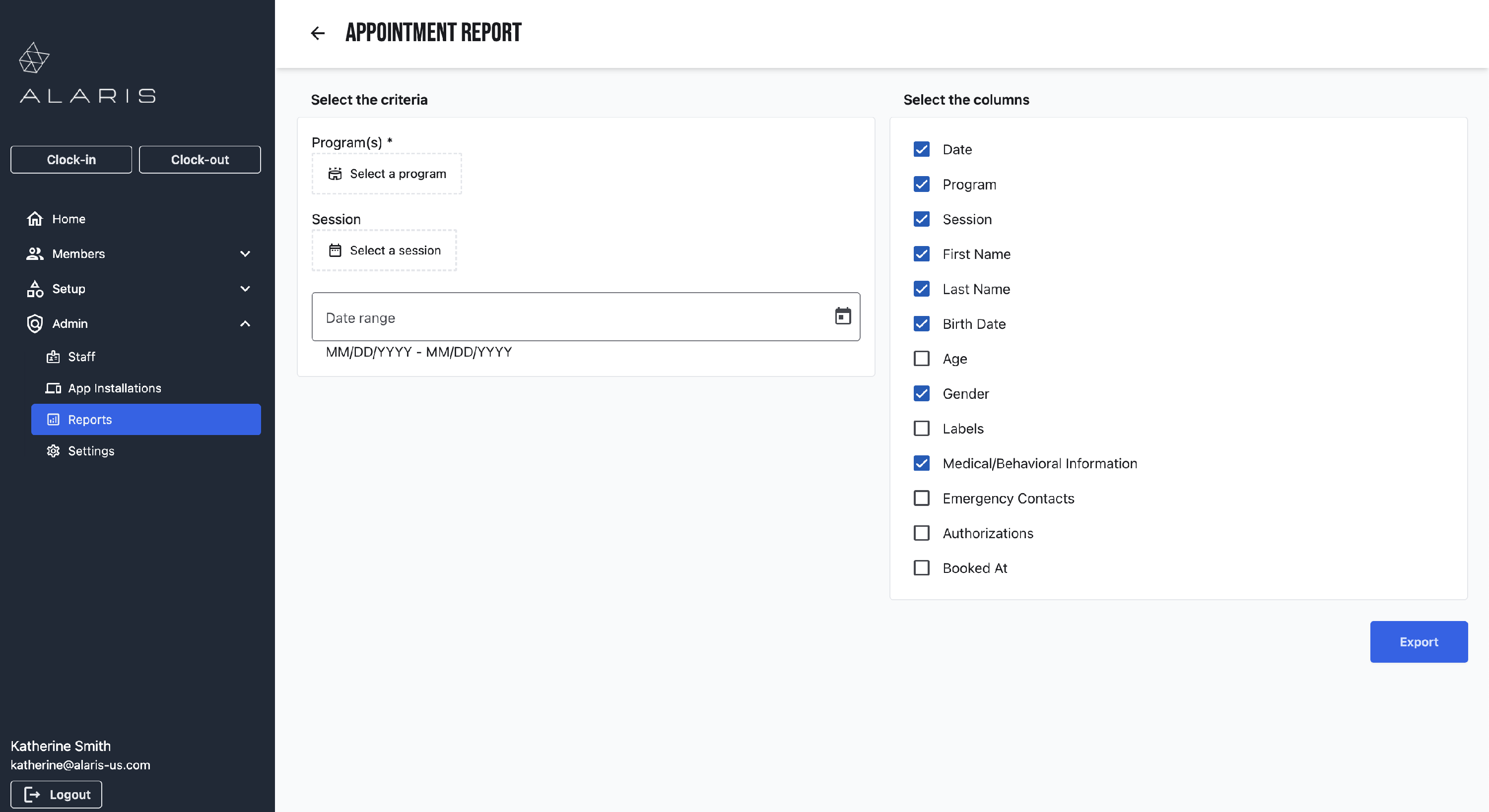
- Appointment Report: Export appointment and attendee information
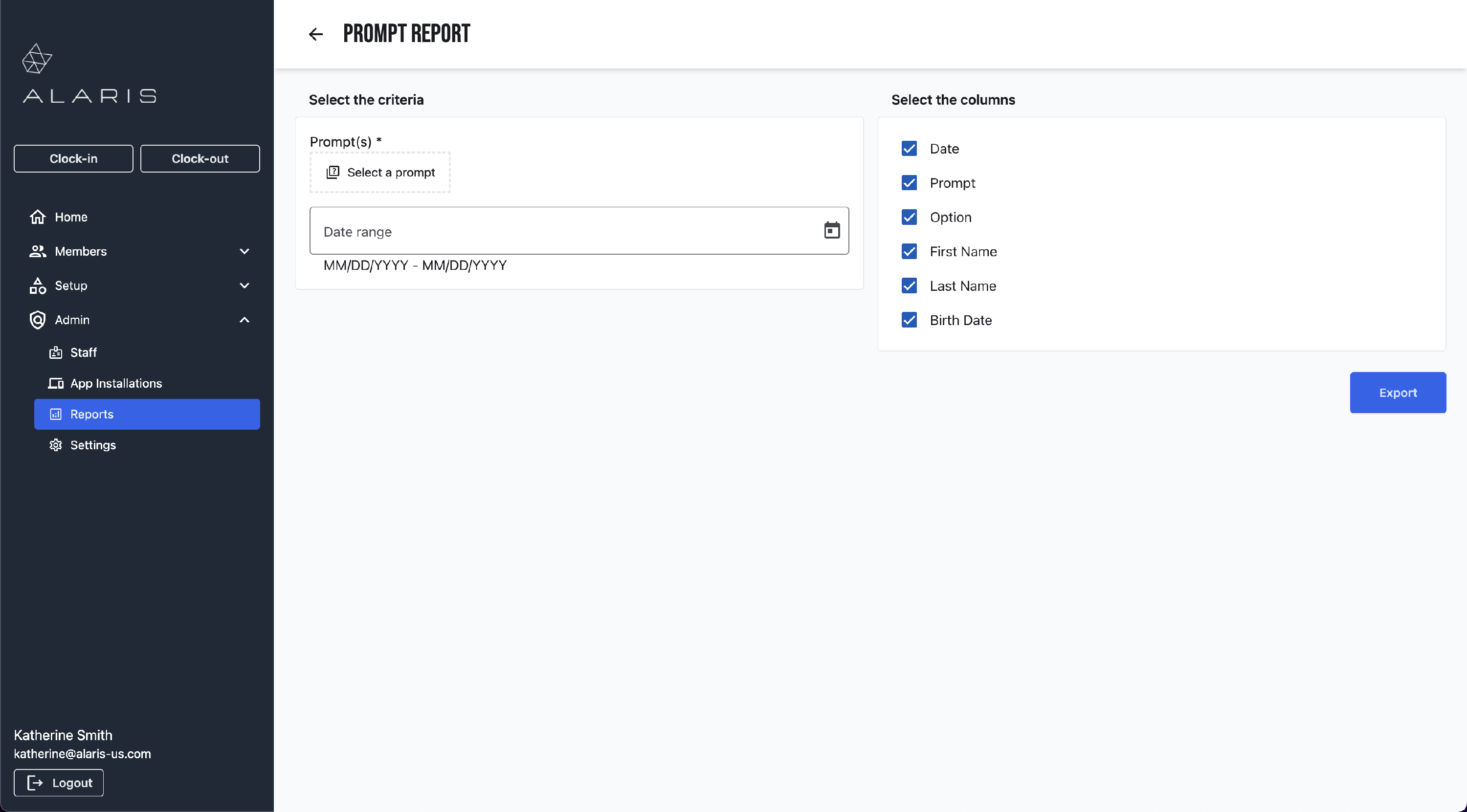
- Prompt Report: Export prompt responses.
- Purchase Report: Export purchase total by member/program
- Revenue Report: Export total revenue by location
- Roster Report: Export a unique list of attendees registered for a program
Each report allows you to choose from an assortment of filters, all dependent on the specific information you are looking for. This is called the Criteria. This can include the program, session, date range, location, user, attendee, and more.
Then, using the boxes to the right, you can decide which information you would like to populate in the report. Every box that is checked will be a Column in the report.

Step-by-step Instructions:
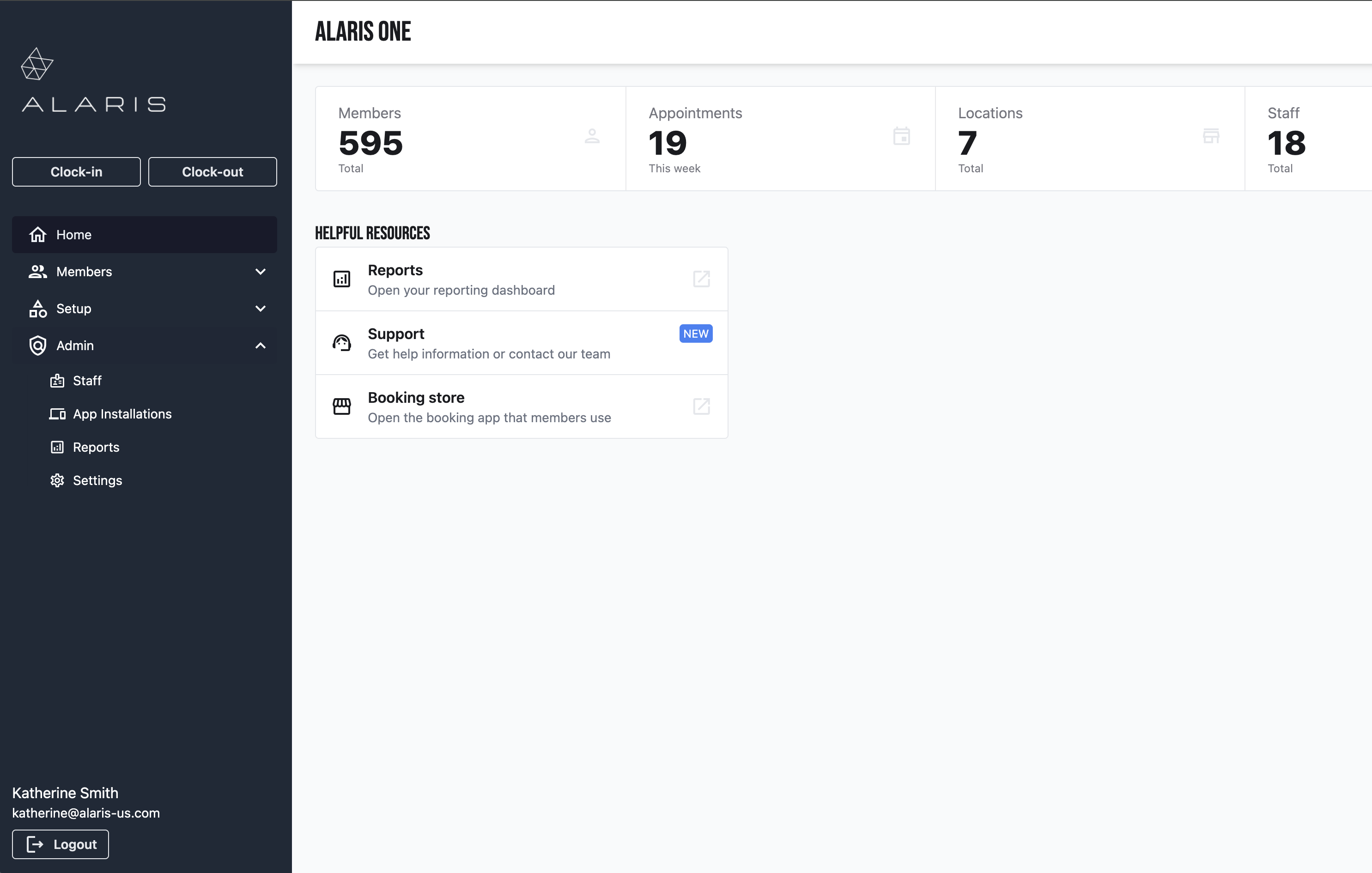
- First, you will log in to the Alaris Admin App.
- Next, you will select the Admin drop down menu.
- Then, select Reports.
- Your reporting options will appear here. Each report pulls in different information for your organization.
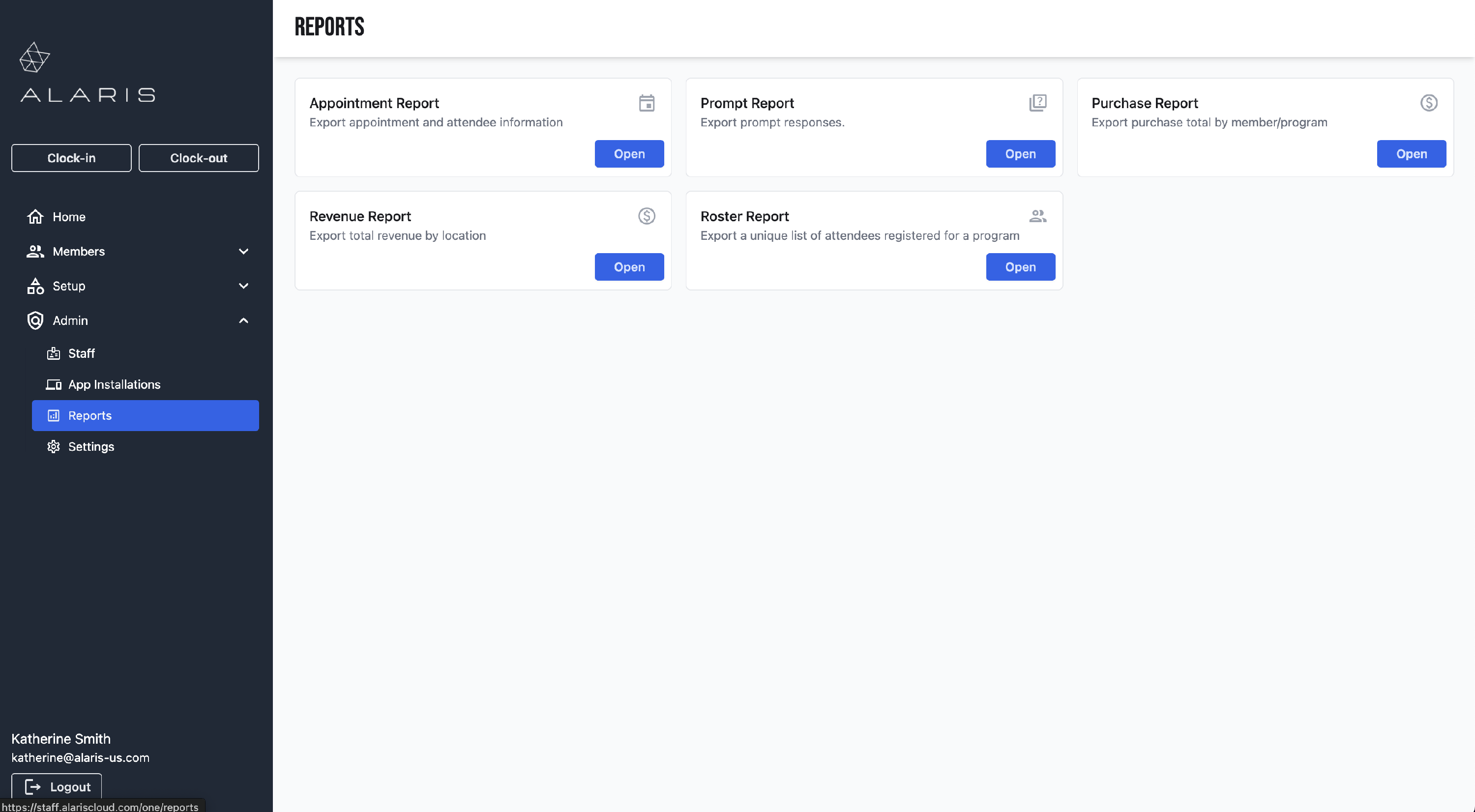
Appointment Report: Export appointment and attendee information
Prompt Report: Export prompt responses.
Purchase Report: Export purchase total by member/program
Revenue Report: Export total revenue by location
Roster Report: Export a unique list of attendees registered for a program
- Select the report that you want to open. Select Open.
- Here, you can filter the report to your needs. They can be filtered by specific details and by date.