
More Information on Prompts
Overview: This article will provide more information on Prompts, including how they work and what their purpose is.
Prompts are a tool that allow an organization to set up questions for parents to answer during the Kiosk check-in process.
- Prompts can be applied to all members, or just specific users depending on particular factors.
- Prompts can also be set to occur during every check in, or just the first time that the user ever uses the Kiosk.
For example, a user may only need to fill out a questionnaire regarding initial enrollment questions once- but need to complete a general health questionnaire during each and every check in.
- Prompts can also be set up to require specific answers for check in to be completed.
For example: A prompt may ask if a child has been exposed to Covid-19 or if the child is experiencing flu-like symptoms. The prompt was set up to block the check-in if the answer is set to Yes. If the parent selects Yes, they will not be able to proceed with the check-in.
Sometimes staff will need to collect the data from these prompt answers. This report can be found on the Alaris Admin App.
- Open the Alaris Admin App on your internet browser.
- Select Admin on the left. Then, Reports.
- Here, you can select Prompt Report.


Step-by-Step Instructions:
- First, you will login to the Alaris Admin App.
- Select Setup on the left. Then, select Prompts.

- Select +Add in the top right corner to create a new Prompt.
-
A window will appear to the right. Here, you will name your prompt, and write the descriptor message.
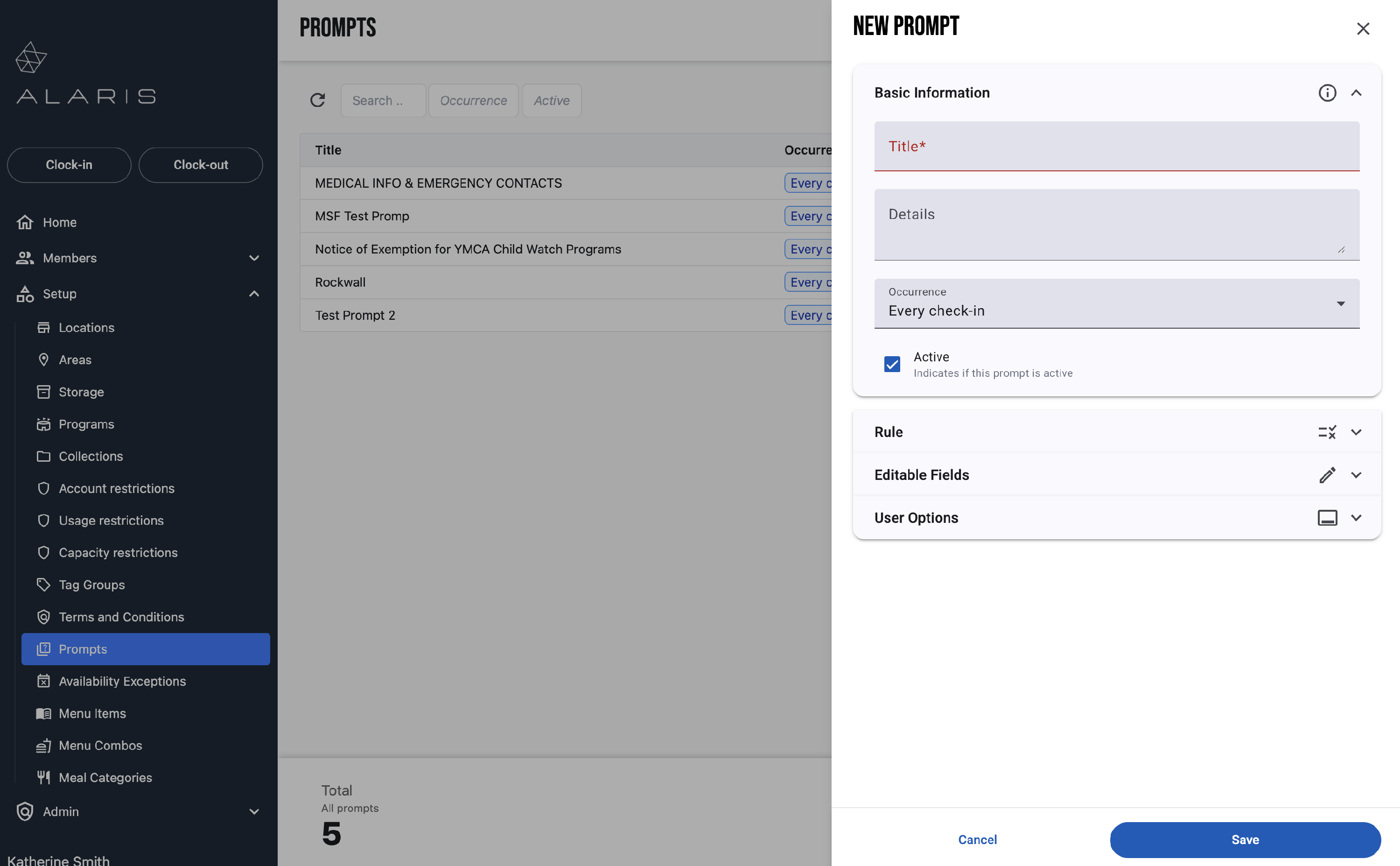

- Next, you will set the Occurrence. This means how often the prompt will be presented during check in.
- Every check-in means it will display every time a parent checks in.
- First check-in means it will display only on the first time a parent checks their child in to the center.

- Next, you will create the Rules for this prompt. For this example, I only want to show this prompt for children over the age of 6 years old.
- First, select the Condition. For this example, I selected "Attendees age in years"
- Then, select the next condition. For this example, selected, "Is greater than"
- Then, fill out the age. For this example, I put six years old.


- Now, this prompt will only appear when parents are checking in children over the age of 6 years old. These rules are extremely customizable, and can be built to your specific needs.
(You can also not include Rules at all, and this Prompt will appear for all users, regardless of age/membership type/ etc.)
- Next, select the Editable fields if they apply. For this example, I did not select any.

- Finally, you will select the User Options. These options are mandatory, or the prompt will not work.
- Select Add.

- For this prompt, I added a Yes or No option. If the parent selects Yes, the child can swim, it will prompt them for a signature.
- Check the signature box if you want to require a signature.
- If you want to block the check in if an option is selected, check the box for Blocking.

- Once this is completed, press Save.
- You are not done yet. You will need to assign this prompt to the correct Sessions.
- Open the Programs page to the left. Then, select the program that you want to assign this prompt to.
- Select the correct session.
- A window will appear to the right. Select Prompts.


- Select the prompt you need to attach. Press Done.

- Then, press Save.
- You are done! 🥳