
Network Printing Setup
Overview: This guide will walk you through setting up your Network printing on the new Alaris Staff and Alaris Kiosk Apps.
Step-by-Step Instructions:
- First, you will find the Settings on the app. If you are on the Kiosk app, this can be found in the top right corner of the screen. The icon looks like a gear.
- When you select the gear, you will be prompted to select a Staff User and enter a PIN number. For most organizations, this PIN number is 12345. (Unless your location has requested otherwise)


- In the Staff app, since you are already signed in as a Staff member, you can just press the Settings icon.

- Now that you are in the Settings, you can scroll down to Sticker Printing. Select where it says Printer: None.
- Next, select Network.
- You will need to ensure that the printer is connected to the WiFi network, and that the tablet is on that same WiFi network.
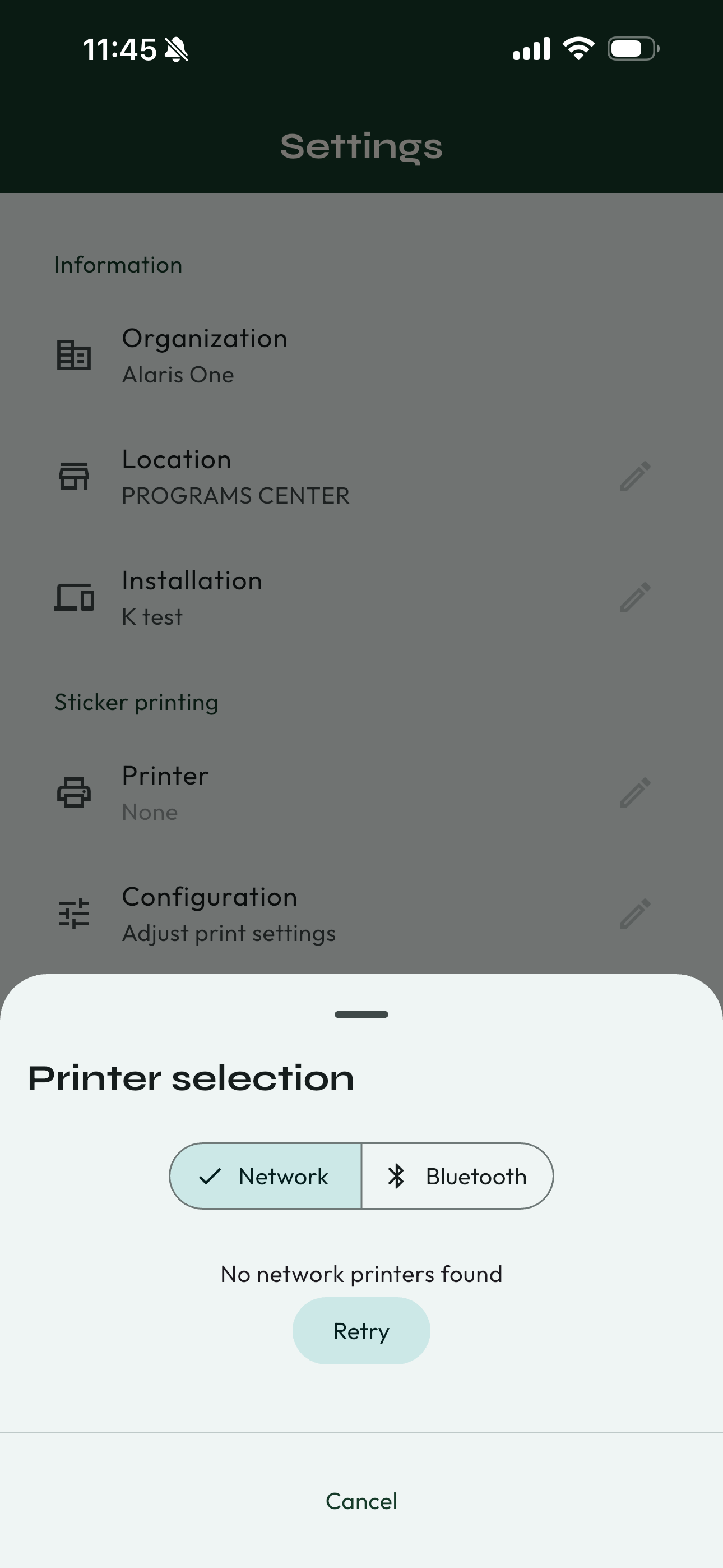
- When the Tablet and the Printer are on the same WiFi network, a printer option will appear.
- If you are still not seeing your printer, contact the Alaris Support Team at 415-813-1410.
- Select the Printer.
- Select Save.
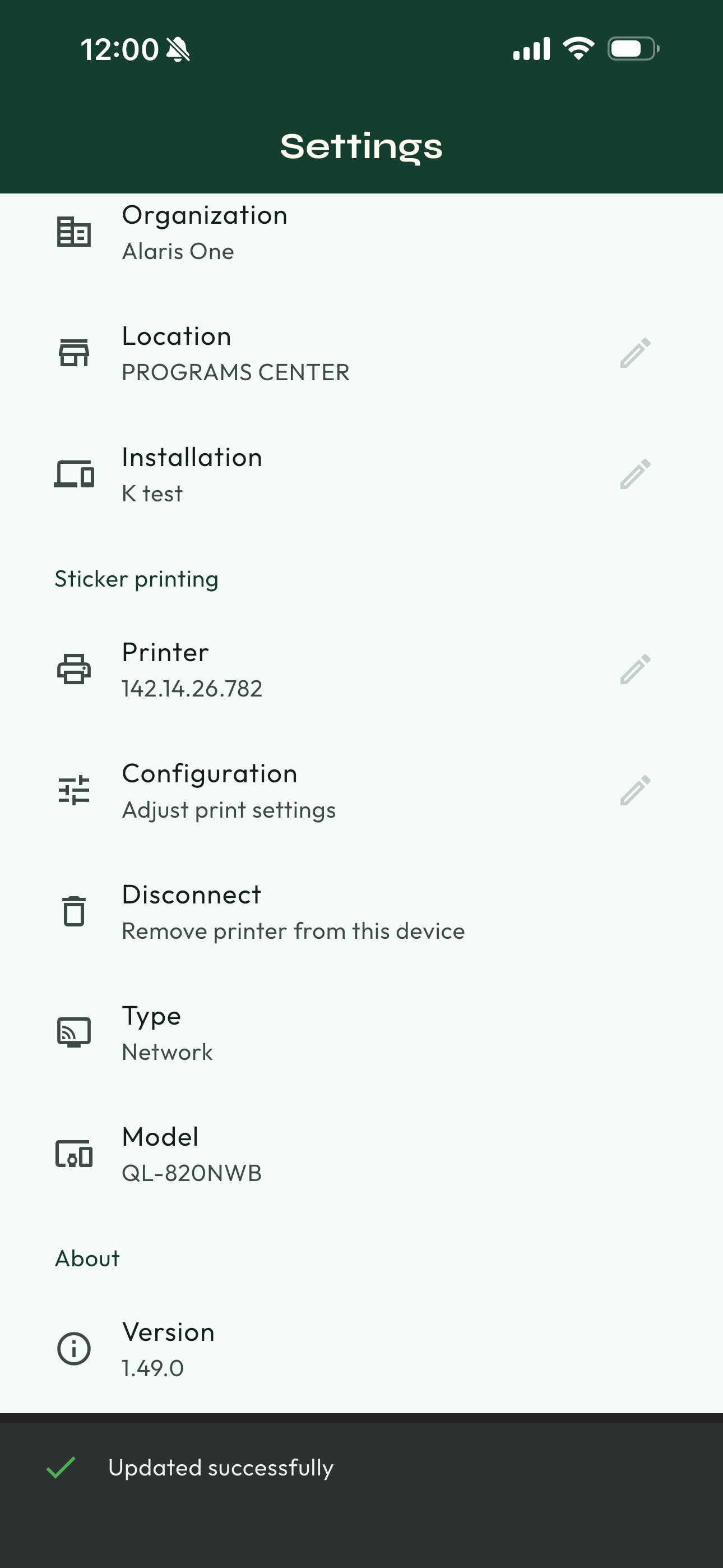
- Now you're ready to print! 🥳