
Turn On Automatic Sticker Printing
Overview: This article will walk you through how to turn on automatic sticker printing in the Alaris Kiosk App.
Step-by-Step Instructions:
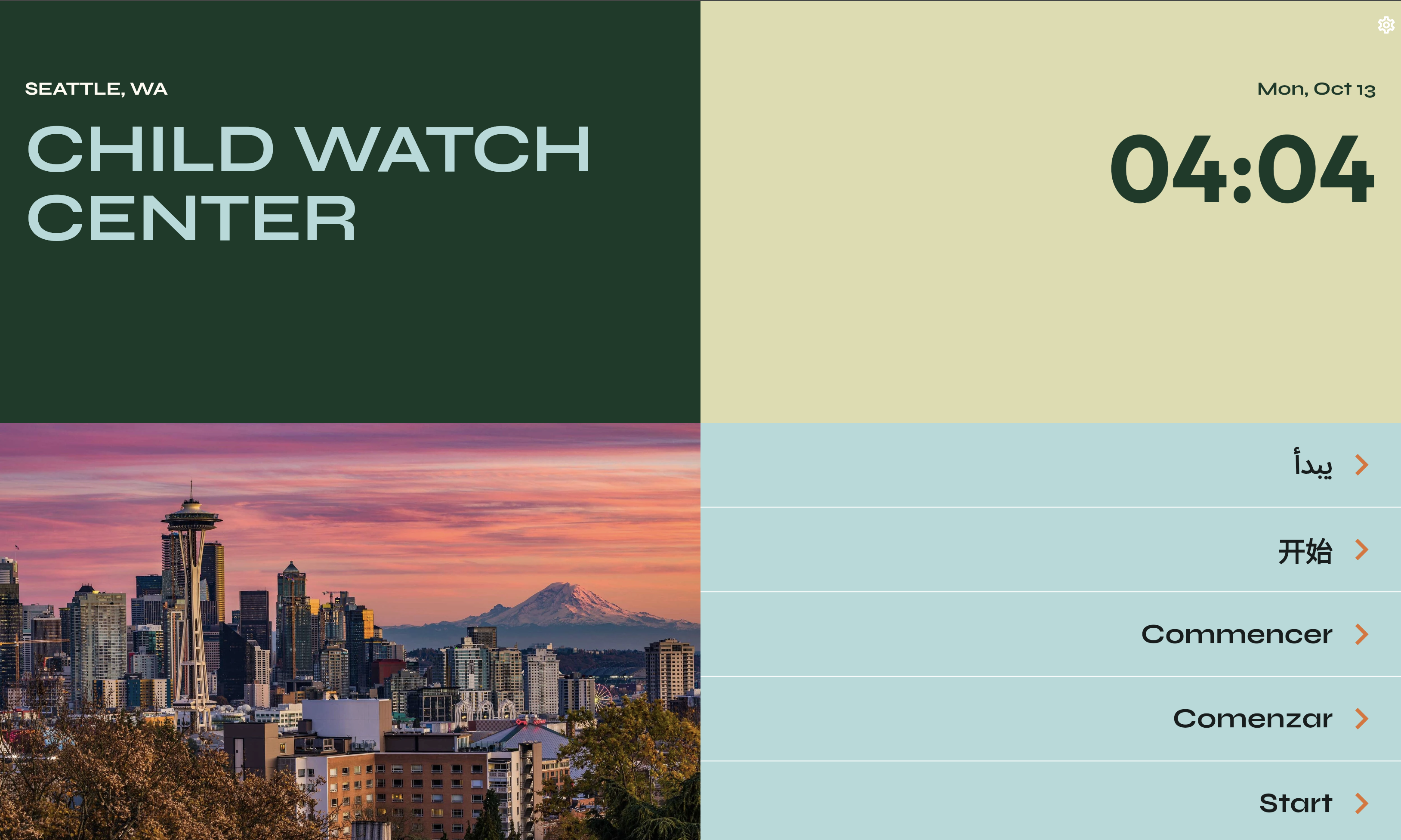
- First, open the Alaris Kiosk app. Select the white Gear icon in the top right corner.
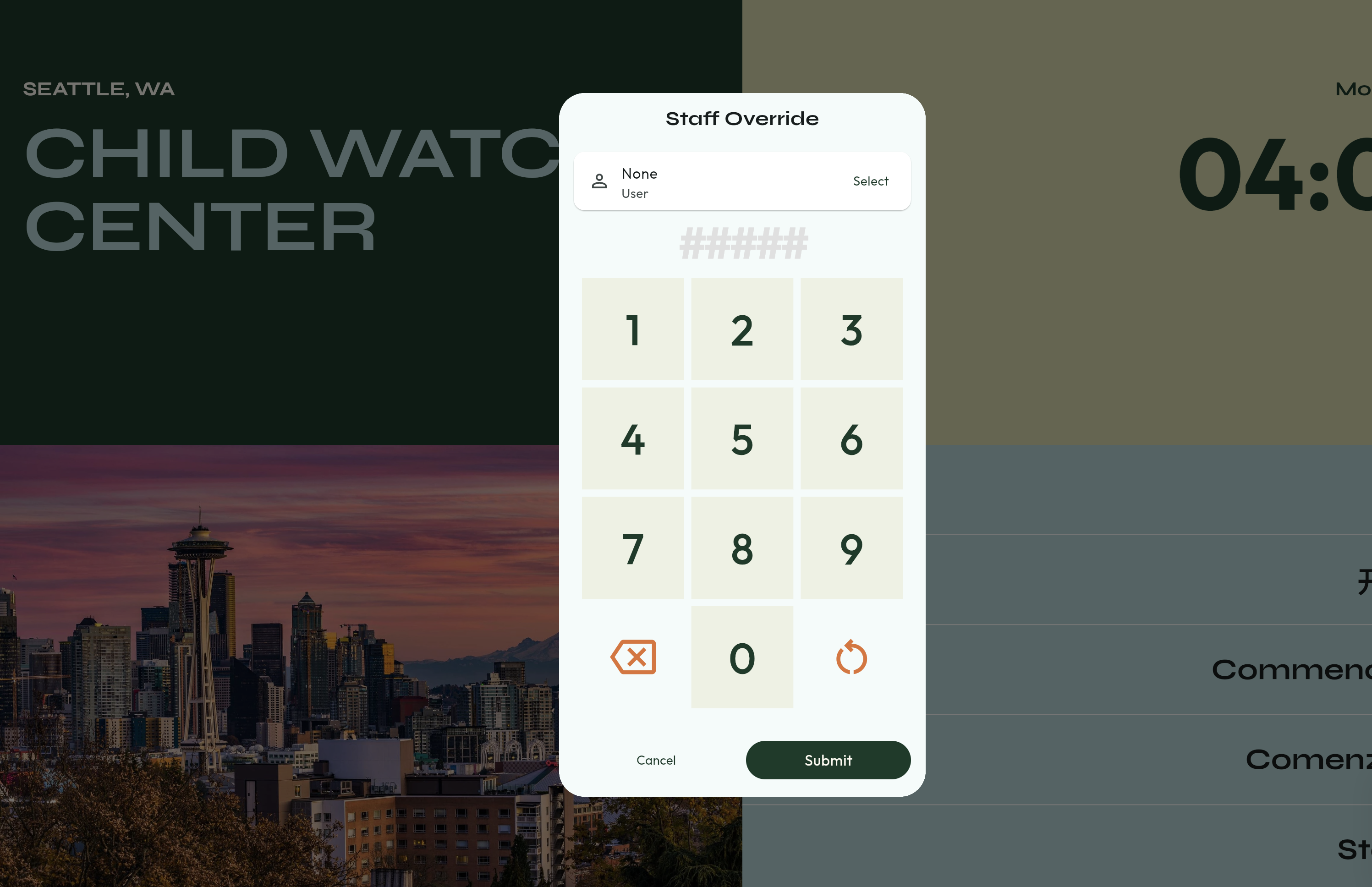
- Then, enter the PIN 12345, and select a staff member from the drop down list.
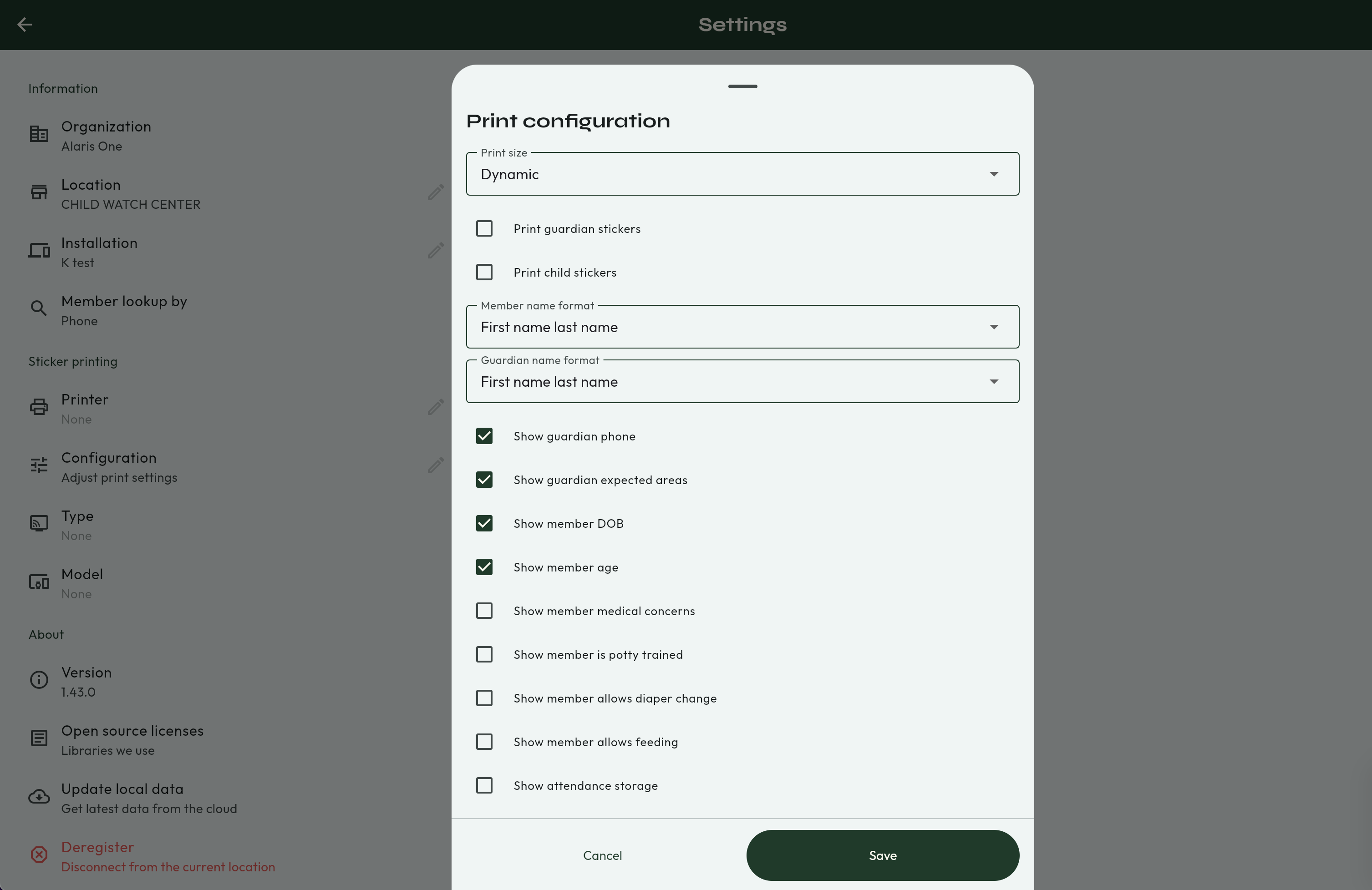
- Next, you will be in the Settings menu. Under Sticker Printing, select Configuration.

- Here you can modify the printer configuration settings. To turn on automatic printing for child stickers, check Print Child Stickers.
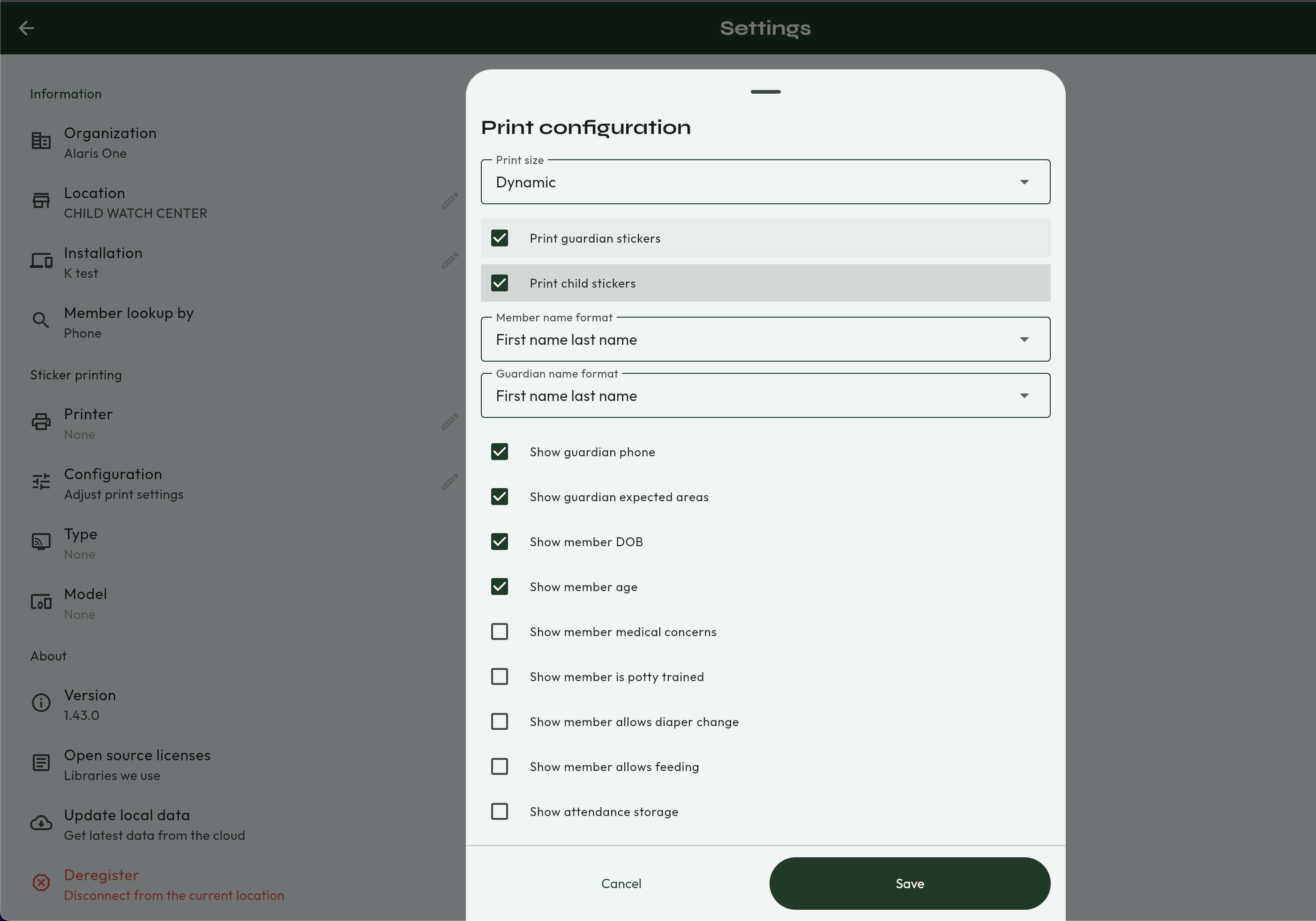
- Do the same for the guardian if you need that to print as well. Then, select Save.
- You're done! 🥳